
Configuring Apple Mail for IMAP using SSL
Configure Mail
Launch the Mail app. (Click the icon in the dock or go to the Applications folder to open it.)
Add a mail account:
- If you have not previously configured an account in Mail you will be prompted to add an account.
- Click Add Other Mail Account and then click Continue. Otherwise, go to the Mail menu and click Accounts.
- Click Add Other Account > Add a Mail Account and then click Create.
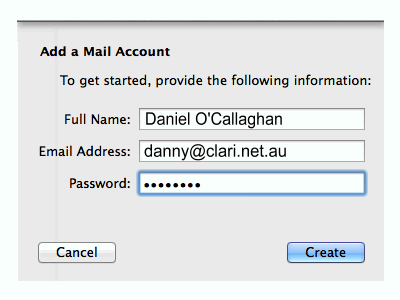
Enter the following information:- Full Name: the name you want displayed on your outgoing mail
- Email Address: your email address
- Password: your password
- Click Create when done
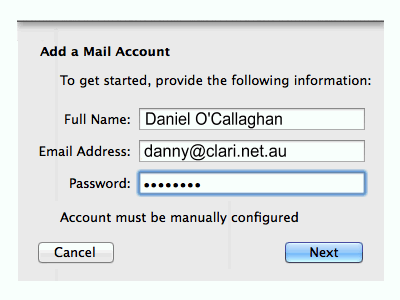
- A message saying that the account must be manually configured is displayed on the screen. Click Next.
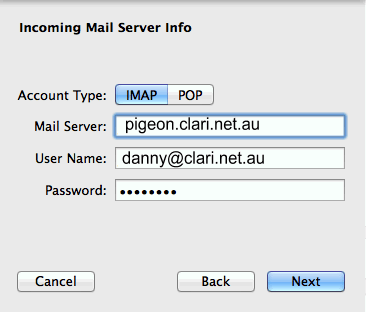
- Enter the following information for the incoming mail server:
- Account Type: IMAP
- Mail Server: pigeon.clari.net.au
- User Name: your email address
- Password: your password
- Click Next when done.
- Enter the following information for the outgoing mail server:
- SMTP Server: pigeon.clari.net.au
- User Name: your email address
- Password: your password
- Click Create when done.
Adjust the configuration
Next you need to go to the Mail preferences to verify and adjust your email settings.
- Launch the Mail app if it is not already open.
- On the Mail menu, click Preferences and then click Accounts on the toolbar.
- Select your Clarinet account and verify the following settings in the Account Information tab:
- Enable this account: ticked
- Description: the default is your email address but you can change it if you wish
- Email Address: your email address
- Full Name: the name you want displayed on your outgoing mail
- Incoming Mail Server: pigeon.clari.net.au
- User Name: your email address
- Password: your password
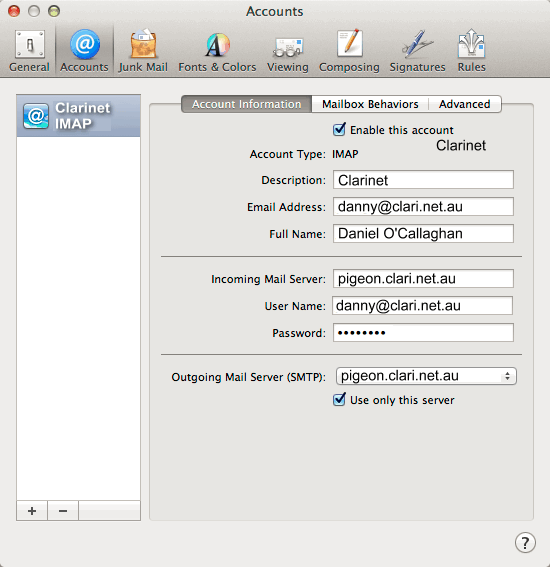
- Click the drop down list for Outgoing Mail Server (SMTP) and choose Edit SMTP Server List
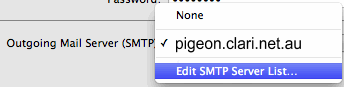
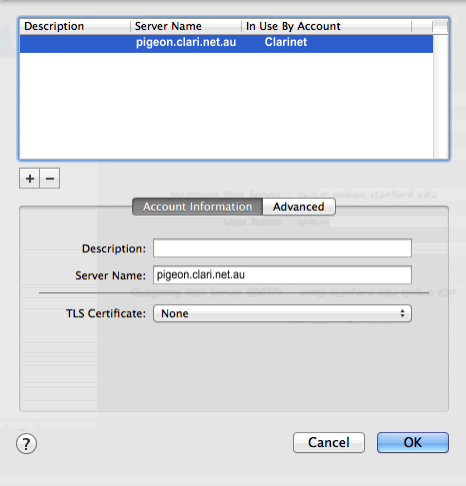
- In the outgoing server list window, select the entry for pigeon.clari.net.au and verify the following is entered under the Account Information tab:
- Server Name: pigeon.clari.net.au
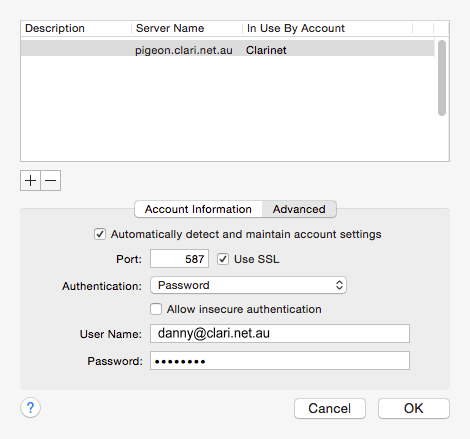
- Click the Advanced tab and verify the following settings:
- Use custom port: 587
- Use STARTTLS: checked
- Authentication: Password
- User Name: your email address
- Password: your password
 /p>
/p>
- Click OK to close the outgoing server list window.
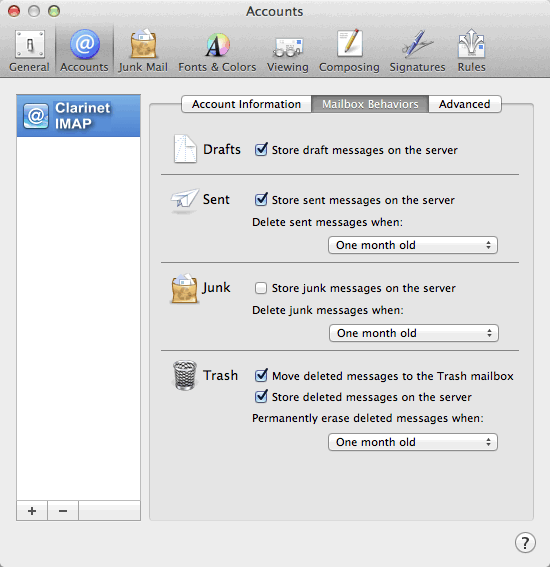
- Click the Mailbox Behaviours tab. The following settings are recommended, but are not required:
- Store draft messages on the server: ticked
- Store sent messages on the server: ticked
- Delete sent messages when: One month old
- Store junk messages on the server: unticked
- Move deleted messages to the Trash mailbox: ticked
- Store deleted messages on the server: ticked
- Permanently erase deleted messages when: One month old
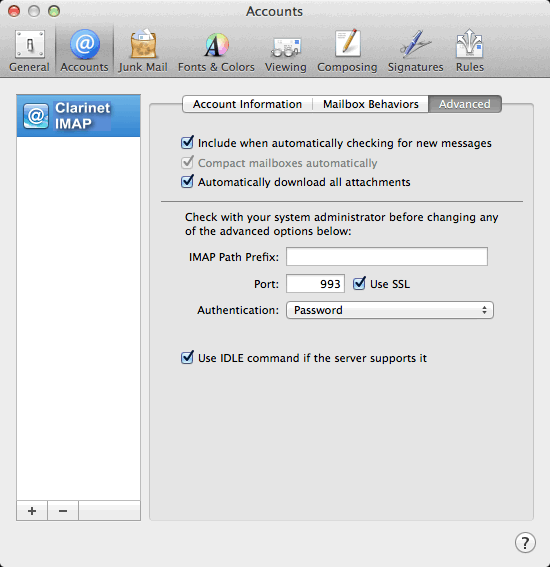
- Click the Advanced tab and verify the following settings:
- Include when automatically checking for new mail: ticked
- Automatically download all attachments: ticked
- IMAP Path Prefix: <blank>
- Port: 993
- Use SSL: ticked
- Authentication: Password
- Use IDLE command if the server supports it: ticked
Close the Preferences window.
If prompted to save your changes, click Save.