
May 26, 2016 12946 views
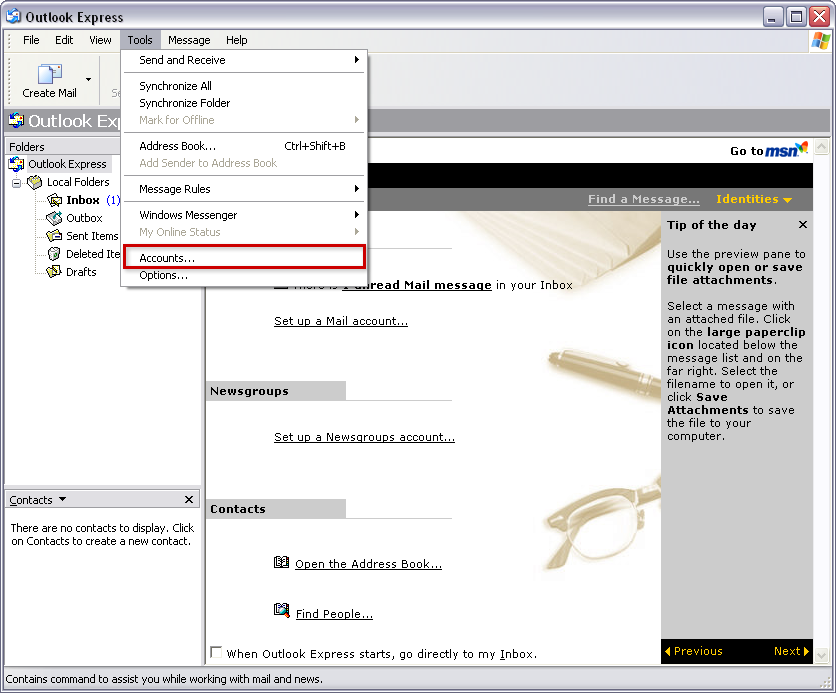
To update your email settings in Outlook Express, start Outlook Express and go to Tools -> Accounts
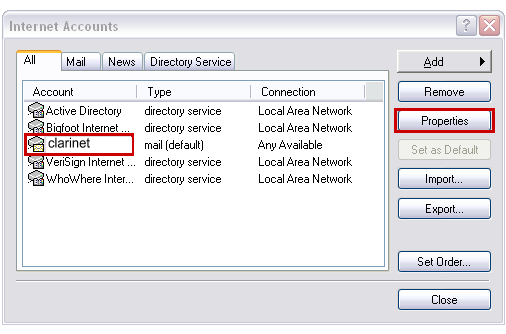
Select your Clarinet account (it might have a different name) and click Properties
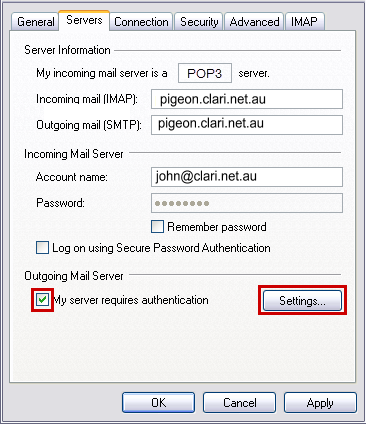
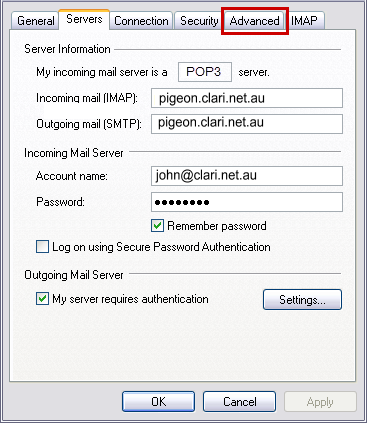
Click on the Servers tab and change the Incoming Server, Outgoing Server, Account name settings to match below, using your personal settings.
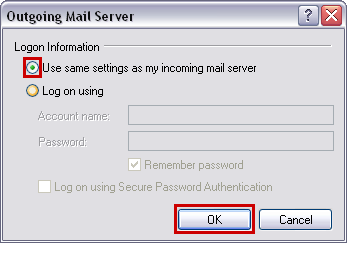
Click the My Server requires authentication for Outgoing Mail Server and click Settings button. Select Use same settings as my incoming server and click OK.
Now click on the Advanced tab.
Change the settings to match the image below. The port number should be 995 for POP with SSL. Click OK when done.
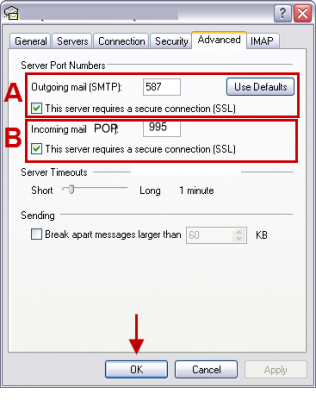
Click OK until you get back to the usual screen and you should be able to send and receive email.